Before you continue
Grant calendar access
when Google asks.
During sign-in, Google will ask you to confirm what Calendrz can access. Follow the steps below so auto-blocking works correctly.
Click "Continue with Google" →
You'll be taken to Google's sign-in and permissions screen.
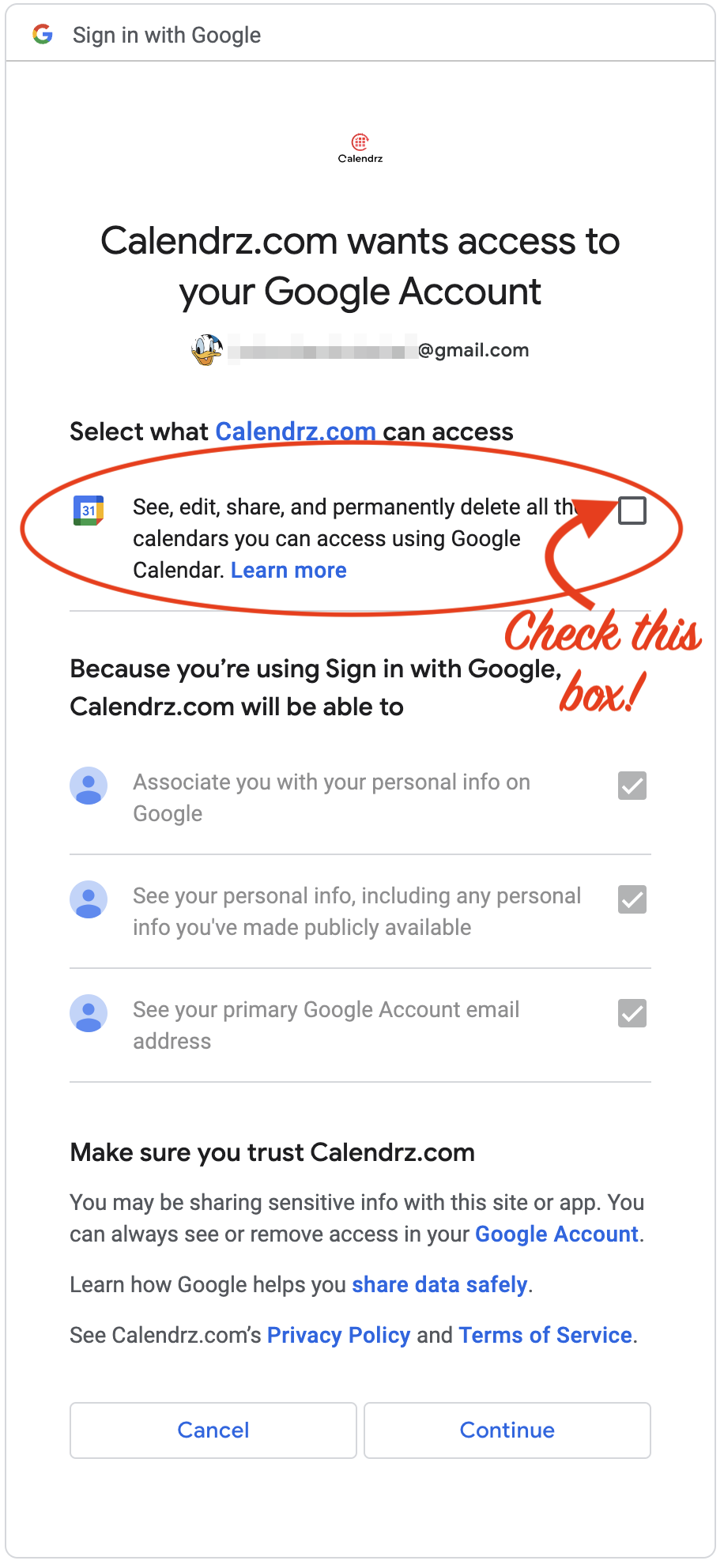
Check the calendar access box
On the Google permissions screen, you'll see a checkbox next to "See, edit, share and permanently delete all the calendars you can access using Google Calendar." Check it. Without this, Calendrz cannot detect busy events or auto-block your time.
Click "Continue" on Google's screen
You'll be returned to Calendrz and auto-blocking will activate immediately.
Almost there
One click away
from zero
double bookings.
Read the steps on the left, then continue. The whole process takes under a minute.
-
Your private event details are never shared — only busy/free status
-
Auto-blocking activates immediately after connecting
-
You can disconnect any account from your profile at any time
Personal Gmail users: remember to check the calendar access box when Google asks.